

How to Type Spanish Accents on Mac and iPhone

Here you’ll find everything you need to know to type accents on macOS. Not knowing how to type accents and special letters can mean the difference between año for year, and ano for anus. You don’t want to make that kind of mistake. Trust us. So we’re here to help!
The Easiest Way to Type Spanish Accents on MacOS and iOS
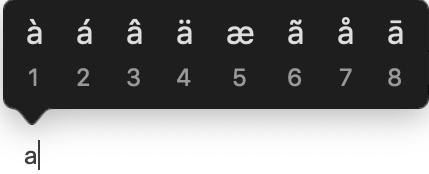
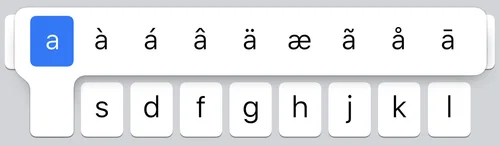
Many Spanish accents can be produced simply by pressing the letter that you would like to add an accent to for one second. A mini screen will popup where you can select the accent that you want to select. This method works on both Apple MacOS (desktops and laptops such as Mac and MacBook computers) and iOS (phones and tablets such as iPhone and iPads).
How to Type Accents on Apple Desktops and Laptops (Mac and MacBook)
If you’re on an Apple Mac (desktop) or Macbook (laptop), use the following method to type Spanish punctuation, accents, and dieresis.
How to Type Spanish Punctuation
¿ = opt + shift + ? simultaneously
¡ = opt + ! simultaneously
For example:
¿En serio? = Seriously?
¡Auxilio! = Help!
How to Type Spanish Accents
́ = type opt + e followed by the vowel
For example: canción = song lápiz = pencil
How to Type ñ
ñ = type opt + n followed by n
For example:
niño = child/boy
año = year
How to Type a Dieresis (Double Dots)
ü = type opt + u followed by u
For example:
güero, bilingüe
How to Type Capital Letter Accents
opt + e followed by shift + the vowel
For example: Árbol = tree
That’s all there is to it! Looking to learn about different Spanish accents around the world? Check out that article here.
More about Improving Your Spanish
HOW I LEARNED SPANISH AS AN ADULT. EVERYONE WANTS TO KNOW HOW TO LEARN SPANISH AND HOW LONG IT TAKES. THIS IS MY EXPERIENCE.
Related Posts
How to Make a Hotel Reservation in Spanish
An Honest Review of Sonix Transcription Service
BaseLang: An Honest Review